Enhancing Security with a Virtual TAP: Visibility in a Virtualized Environment

Problem:
IT security specialists face increasing challenges in maintaining visibility over data traversing corporate networks. Security tools struggle to monitor network traffic due to the growing use of SSL encryption and the complexity of modern data center networks, which are highly switched, highly redundant, and spread across multiple locations.
When visibility is lacking, tools like IDS (Intrusion Detection Systems), IPS (Intrusion Prevention Systems), Data Loss Prevention Systems (DLP), as well as application layers and UTM (Unified Threat Management) firewalls, become ineffective. Moreover, network security tools often fail to store actionable information.
This issue highlights the critical need for enhanced visibility solutions that can operate effectively in highly encrypted, complex, and distributed network environments. Without such visibility, the ability of security tools to detect, prevent, and respond to threats is severely compromised, putting enterprise data at significant risk.
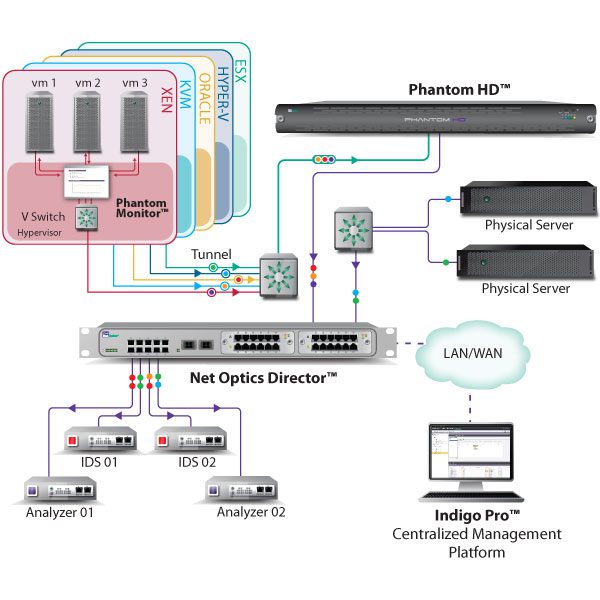
The growing use of virtual servers has proven to be an additional barrier to network visibility and security. The fundamental issue lies in the fact that best practices in server virtualization require creating large clusters of homogeneous virtual processing systems connected to high-speed SAN networks. The virtualization service manager deploys guest VMs across these virtual hosts using a combination of reserved resources and load balancing, optimizing the use of virtual hosts and SAN networks. Server teams manage the limited resources of CPU, memory, and disk, and prefer not to be constrained by network topology, subnets, and VLANs. In other words, server virtualization inevitably leads to a loss of visibility into the traffic between guest VMs.
Network teams may require certain types of VMs to be tied to specific virtual hosts, which could force some inter-VM traffic to be redirected to a physical network connection that can be captured via a tap and monitored.
However, these constraints reduce the efficiency and optimization of virtualization. This is a heavy price for server teams to pay if they want network and security teams to do their job effectively. Network and security teams must find ways to maintain visibility without interfering with the design and deployment of virtual services.
Gaining Visibility in Virtual Environments The Phantom Virtual Tap is the ideal tool for security professionals needing visibility in highly virtualized environments. The Phantom tap, especially when used with the Tap Director, provides the same services as hardware tap and port mirroring technologies commonly used in enterprise networks."**
This translation highlights key concepts like "server virtualization," "network visibility," and "virtual tap" to optimize for relevant search queries related to virtualization challenges and network security.
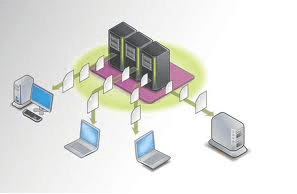
We have the solution that bridges the gap between physical and virtual environments, reactivating security tools like IDS, Data Loss Prevention Systems, and capture probes without disrupting the virtual environment.
Unlike alternative approaches that merely capture virtual environments, one of Phantom’s key goals is to extract packets from the environment as quickly and cost-effectively as possible.
By directly integrating with the ESX hypervisor, Phantom can copy packets as they move between guest VMs with minimal overhead. A small virtual machine on each host receives configuration information and transmits the selected packets out of the virtual environment, ensuring no significant processing (and therefore no impact on network performance) occurs on the virtual host itself. Phantom also avoids putting the virtual switch within the host into promiscuous mode, which would significantly affect performance.
A key feature for taps in virtual environments is support for vMotion, the seemingly random migration of VMs from one virtual server to another.
Enhancing Real Security with Phantom Virtual Taps When Phantom is installed on each virtual server, traffic capture among selected guest VMs remains uninterrupted, and vMotion events are essentially transparent.
Other approaches, such as placing guest VMs with security functions on each virtual server, have an undesirable and costly impact on performance and create significant challenges for existing network and security management environments. While these approaches might work in very small virtual environments, when 10, 50, or more virtual hosts are involved, the only reasonable approach is to use tap technology that doesn’t impact performance or increase management overhead. Phantom easily meets the visibility needs of enterprises in virtual environments.
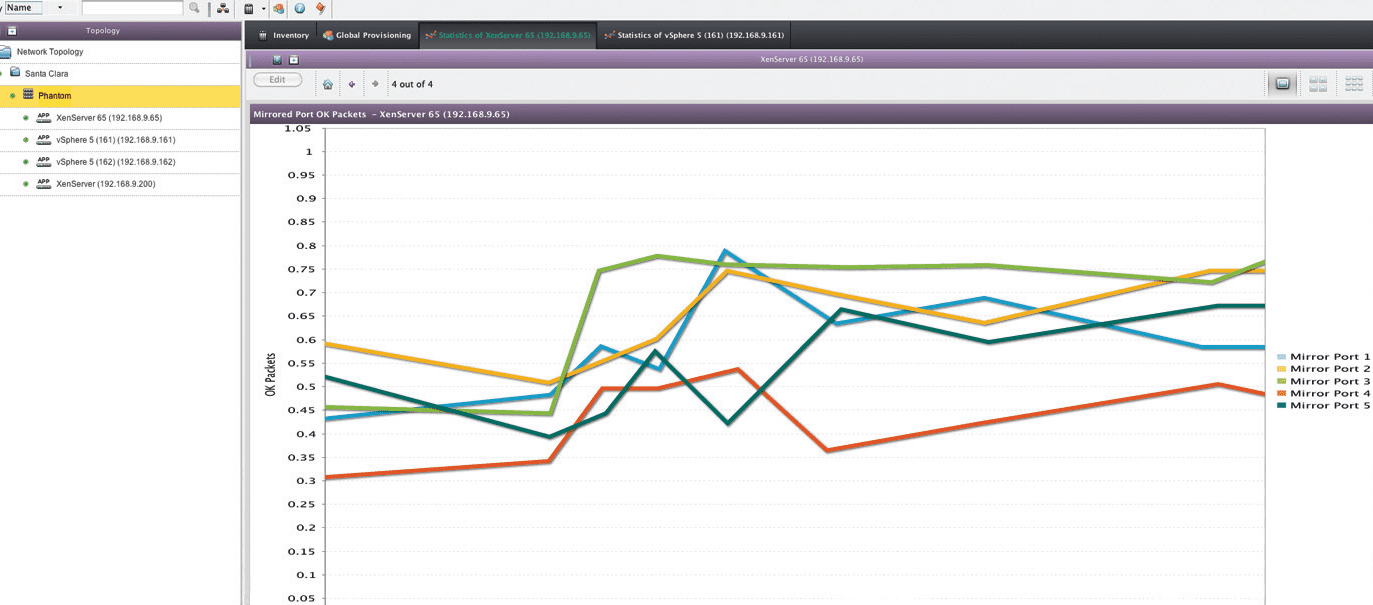
Test Results In a trial version of Phantom, we quickly integrated the tap into a 4-node vSphere environment. One key note: while installing Phantom occurs during normal operation, uninstalling it requires an ESX server reboot! We configured Phantom using the included management appliance, which integrates seamlessly with vSphere, reducing workload. For example, the management appliance automatically assimilates all ESX hosts, guest VMs, and virtual networks from vSphere, simplifying management and reducing the risk of forgotten systems and human error.
One of the management appliance’s advantages is that Phantom taps send NetFlow information (which can be distributed to specialized collectors) to the appliance, providing easy access to simple traffic charts and statistics, such as top talkers and protocols used on each guest VM."**
This translation emphasizes key features like "virtual environment security," "Phantom Virtual Tap," and "vMotion support" to optimize for relevant search queries in the context of virtualized environments and network security.
Each Phantom virtual tap can send selected traffic to up to four devices, encapsulated within a GRE tunnel. Ideally, the NetOptics Director should be used to aggregate and redistribute the extracted traffic to network performance and security devices. In our test, we used a Unix client to receive and decapsulate the GRE traffic, which was a poor substitute for the Director.
An interesting feature of Phantom is the ability to set an IP rule: specifying which traffic to extract and which to ignore. This helps reduce unnecessary traffic sent to security devices, such as internal file sharing or backup traffic, which are not often inspected. It can also be used to direct different types of traffic to different devices, like sending debug traffic from a single host to a protocol analyzer. Although the rule might seem excessive, it is quite crucial because without clear rule definitions, it’s easy to end up with two copies of each packet when guest VMs are on different hypervisors. When the guest VMs are on the same hypervisor, the tap automatically avoids packet duplication.
The Phantom TAP easily solves the challenge of traffic extraction and proves to be an essential solution for any security professional seeking visibility in extended virtual environments."
This translation emphasizes key features like "Phantom virtual tap," "GRE tunnel," and "network security," optimizing for relevant search queries in the context of virtualized environments and network performance.